Appearance
Dashboards
A dashboard is a page of widgets. It shows stored readings. It does not store them.
Open Dashboards.
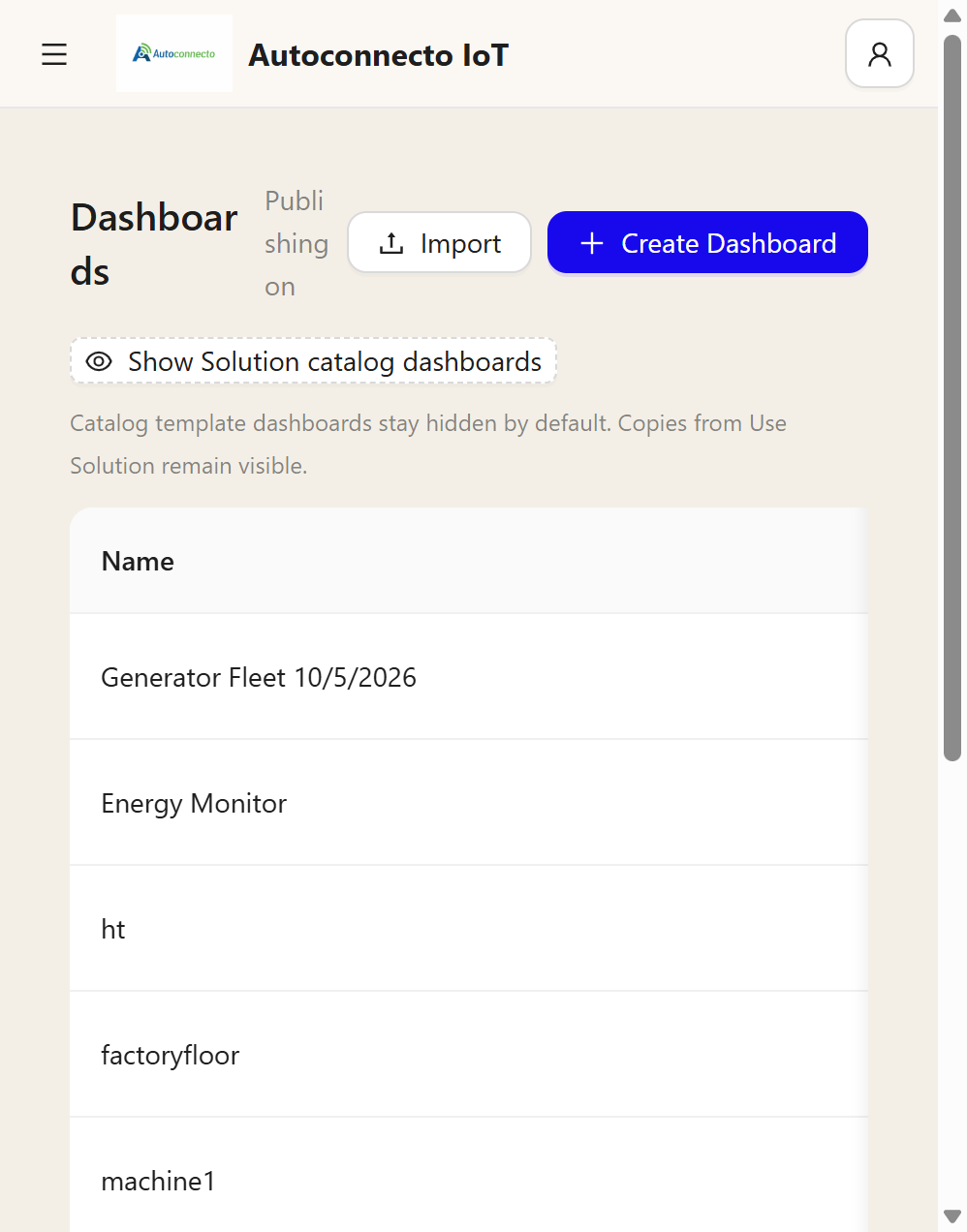
| Control | What it does |
|---|---|
| Create Dashboard | A new page |
| Import | A dashboard file |
| Show Solution catalog dashboards | The template dashboards that ship with Solutions. They stay hidden until you turn this on. A copy you save with Use Solution stays in the list |
Click a name to open the dashboard.
Build a page
- Create the dashboard, or open one.
- Add a widget.
- Choose the device and the telemetry or attribute key.
- Save.
If the device has not sent that key, the widget is empty. That is not a fault in the dashboard.
On a phone the widgets stack. On a desktop they sit on a grid. A dashboard can have more than one state, which is a page inside the dashboard. An alias is a name for a device, or a set of devices, so the widgets follow the selection.
Use a value or a gauge for the latest number. Use a chart for history. Use a control (a switch, a slider, a command) only when the device accepts a command or a shared attribute. The control sends the command. It does not invent a reading.
A command control can have a Command lock. You set a telemetry key, a comparison, and a value. The button does not send until that condition is true. With the lock off, the button sends as before.
Solutions are ready-made dashboards. Preview one, then save it into the tenant. It is a starting layout. It is not live plant data until you bind your devices. The time range on the toolbar is saved with that copy, the same as a dashboard you build yourself.